ECF View
Daeja ViewONE Viewer
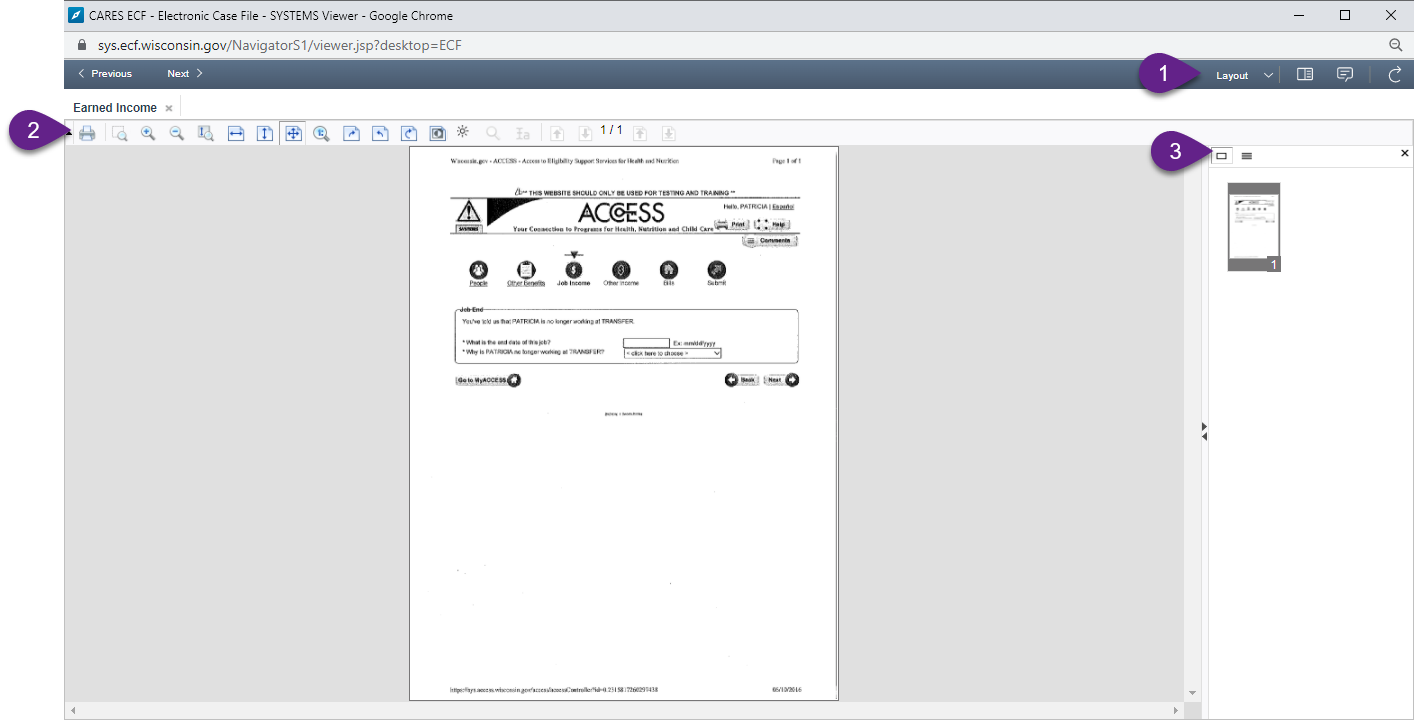
Sections
ECF Toolbar
The ECF Toolbar displays when viewing a document in Daeja ViewOne viewer.
|
|
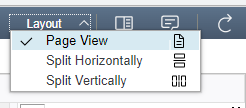
Page View |
View only the current image in the document viewer (default view). When selected, switch between documents by clicking on the tab with the document name. |
|
|
Split Horizontally |
Split the viewer into top and bottom screens to compare any two documents. |
|
|
Split Vertically |
Split the viewer into right and left screens to compare any two documents. |
|
|
View Properties |
View all document properties including case number, document code, and document type. |
|
|
View Notes |
DO NOT USE this feature. All notes should be detailed in case comments or PIN comments in CWW, and not in ECF View. |
|
|
Refresh |
Refresh the current page. |
|
|
Previous |
Display the previous document from the search results list. |
|
|
Next |
Display the next document from the search results list. |





 |
Show/Hide Toolbar | Hide or expand the toolbar. If the toolbar is hidden, the arrow will move to the center top of the screen and point down. |
 |
Opens the Daeja ViewOne print window to prepare and print a document. Select which pages to print, and adjust the margin size and page layout as necessary. Click Prepare File to open the standard printing window. | |
 |
Zoom Area | Zoom in on an area of the document. Click the mouse and drag the cursor over the area to enlarge. Click again to turn off the zoom function. |
 |
Zoom In | Zoom in on the entire document. Click multiple times increase document size in the viewer. |
 |
Zoom Out | Zoom out of the entire document. Click multiple times to decrease document size in the viewer. |
 |
Magnifier | Turn the cursor into a magnifying glass. Sections of the document will be zoomed in as you move the cursor around. Click again to turn off the magnifier function. |
 |
Fit to Window Width | Fit the window to the width of the document. |
 |
Fit to Window Height | Fit the window to the height of the document. |
 |
Fit to Window | Fit the window to the width and height of the document. |
 |
Zoom to 100% | View the document at its true size (100%). |
 |
Rotate Clockwise | Rotate the document 90° clockwise. |
 |
Rotate Counter-clockwise | Rotate the document 90° degrees counterclockwise. |
 |
Rotate 180 Degrees | Rotate the document 180°. |
 |
Invert Colors | Invert the colors of the document (black to white and white to black). Click again to revert to the original colors. |
 |
Visual Effect Adjustment |
When clicked, a small popup will appear to adjust brightness, contrast, and luminance. 
|
 |
Previous Page | Navigate to the previous page of the document. |
 |
Next Page | Navigate to the next page of the document. |
 |
Current Page | Display the page number of the open page. Enter a specific page to navigate to within the document. (Example: enter "70" to go to page 70 of a 200-page document.) |
 |
First Page | Navigate to the first page of the document. |
 |
Last Page | Navigate to the last page of the document. |
Page Navigator
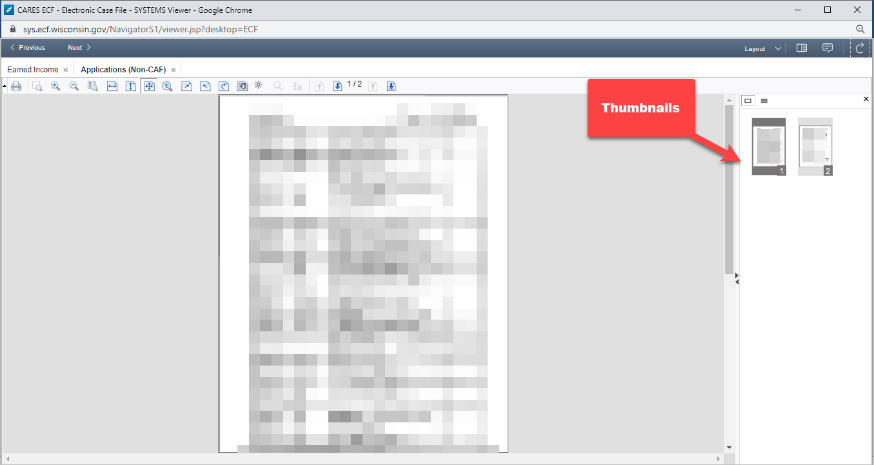
| The Daeja ViewONE viewer has a thumbnail viewer located on the right side of the window. |
Click image for larger view
|
 |
View Thumbnail | Display document pages as thumbnails. |
 |
View Index | List document pages by page number. |